 Local Hair Color
Weekly access
auto-renewing subscription
Every feature while your subscription is active. Handy for a one-off decision; cancel anytime in your Apple account settings.
PriceSee price in app
hair color try-on for iPhone & iPad
See honey blonde, copper, cherry cola, silver, or any shade you like on your own photo or video, before you book the appointment or open the box dye. Your photos stay on your phone.
Free to download, with a free preview on your own photo before you pay. For iPhone and iPad with iOS 17 or later.
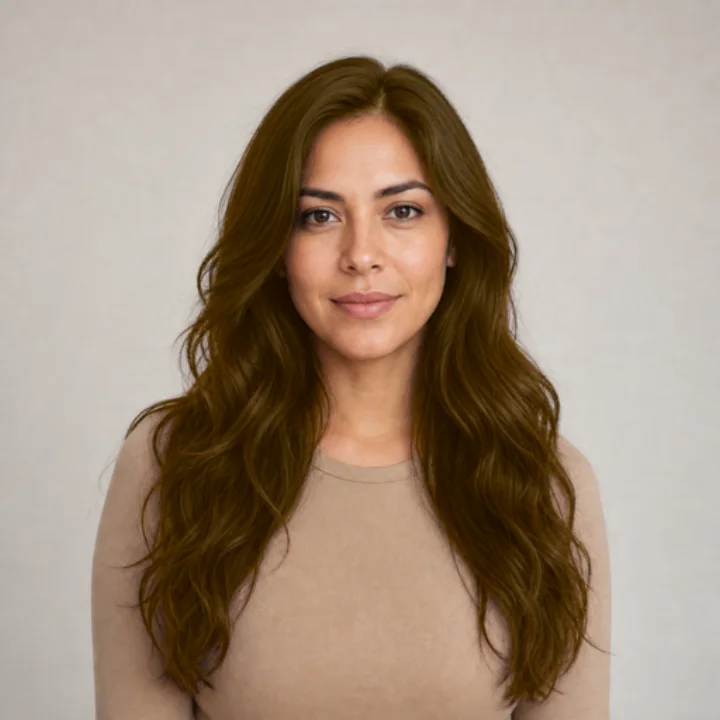
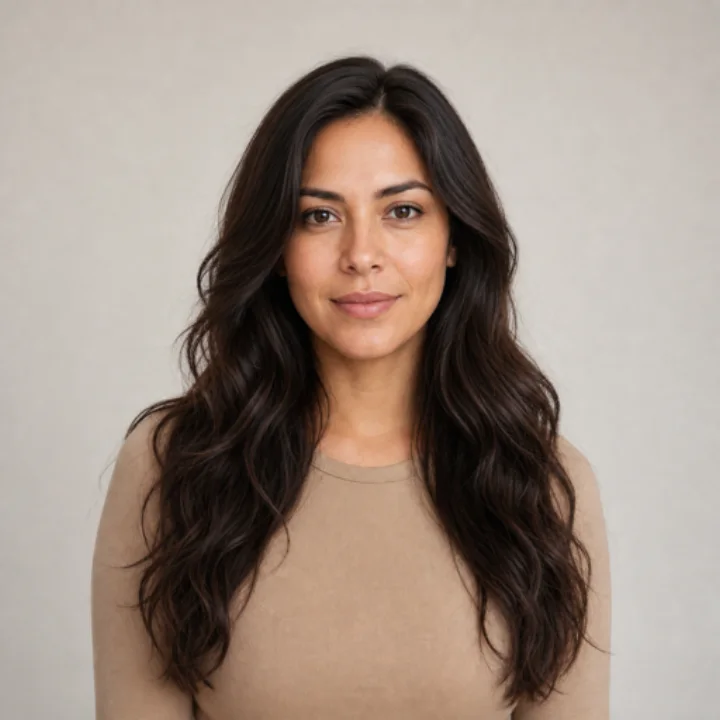
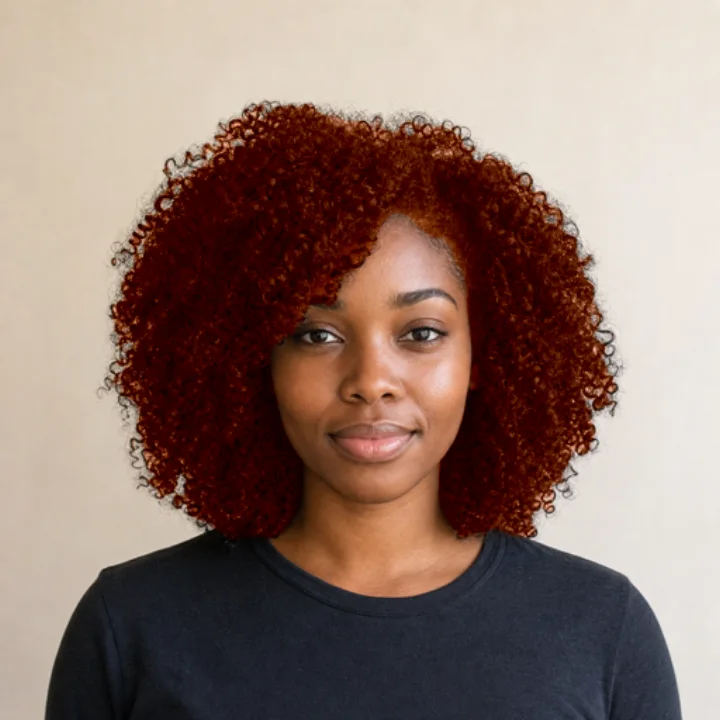
A new color can mean a pricey appointment, months of growing it out, or another round of dye. Seeing it on yourself first is a much gentler way to decide.
Try the bold idea and the safe idea side by side on the same photo. Keep the one that makes you smile.
Inspiration photos show someone else’s hair, face, and lighting. Save a preview on you and bring it to your consultation.
No account and no upload. Your photo or video is edited right on your iPhone or iPad.
four unhurried steps, no appointment needed
Apple’s picker hands the app just the one you choose, not your whole library.
A model built into the app outlines your hair right on the device. Nothing is sent away to be processed.
Flip through shades, turn the intensity up or down, and tap Natural to see your original again.
Brush in missed strands, then save a new photo or video. Your original stays exactly as it was.
Sixteen shades to start, from quiet naturals to “why not?” brights. If none is quite right, open Apple’s color picker and choose your own.
Swatches drawn for illustration. In the app, each shade is shown on your own photo.
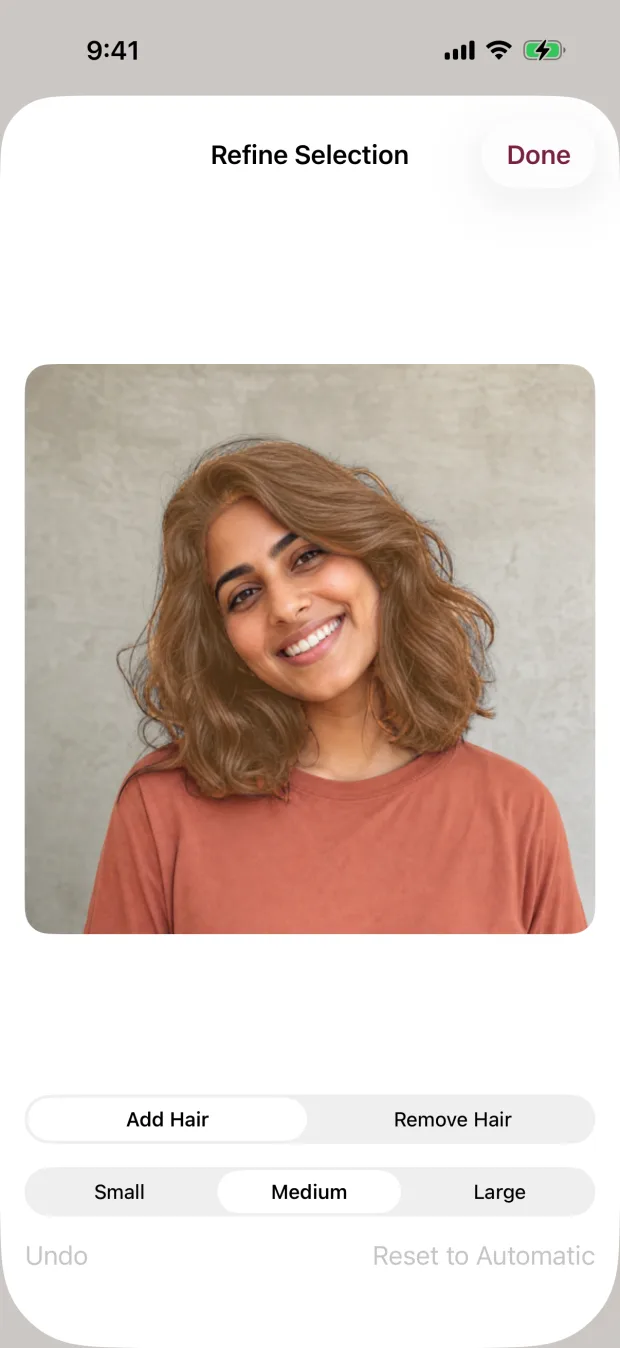
The app finds your hair automatically, which is a good start. But flyaways, hats, bright backlight, and busy backgrounds can trip up any automatic tool.
So on photos you get two brushes. Add Hair colors what was missed. Remove Hair protects skin, clothes, and background. Pick from three brush sizes, undo a stroke, or go back to the automatic selection whenever you like.
new: video
Photos are great for close-ups. A short clip shows how a color looks as you move, turn, and catch the light.
The preview can only work with what your photo shows. Here’s what helps, and what makes the job harder.
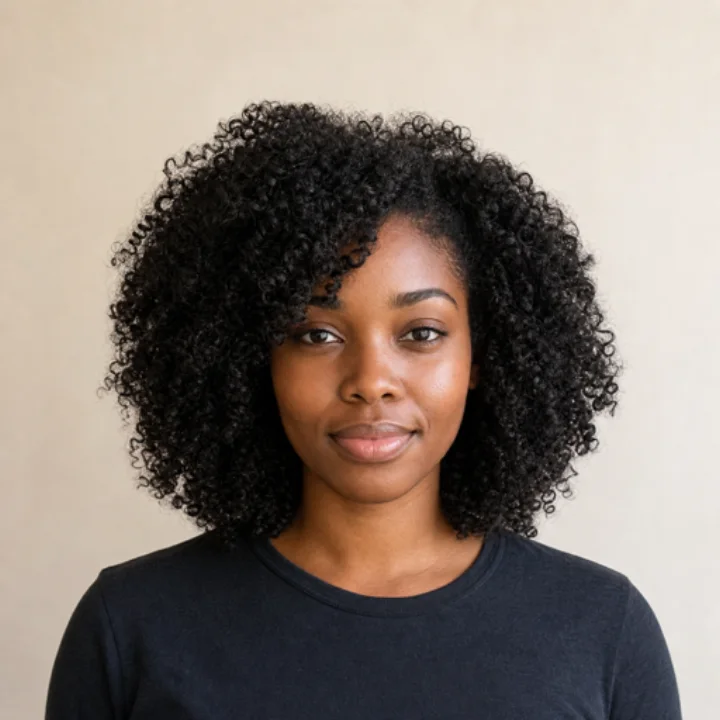
Tricky doesn’t mean impossible. You’ll just do a little more brushing.
Read the photo guideYou shouldn’t have to hand a selfie to a stranger’s server just to try a color. Here’s exactly what happens where.
On your iPhone or iPad. Choosing the photo or video, finding your hair, previews, your corrections, and saving.
No photo server. There’s no photo-processing server, no account, no ads, and no ad tracking.
Nothing kept. The app doesn’t keep your photos, videos, hair selections, or an editing history. Saving makes a new copy without your location, filename, or camera serial.
Needs a connection. Buying or restoring access goes through Apple’s StoreKit, which may need the internet.
A little reporting. The app uses RevenueCat for purchase reporting and limited onboarding analytics. Your photos, videos, colors, and edits are never sent.
The preview is here to help you decide between directions. It shows a color on your photo; it can’t tell you what dye will actually do.
Your real result depends on your starting color, past treatments, the condition of your hair, lighting, the products you use, and technique.
So bring the saved preview to your colorist, or follow the product instructions and do a strand test before you commit.
then enjoy the new color
Setup shows you a shade on your own photo before you spend a thing. When you’re ready for the full editor, choose weekly or lifetime access.
Apple shows the current price for your country, and any renewal terms, before you buy. Both options unlock photos and videos, every shade, intensity, the refine brushes, and saving.
One photo, a few shades, and a much clearer idea of what you actually want.
Use one clear photo and keep the lighting, crop, and intensity similar while you compare shades. An on-screen preview is a way to discuss a look; it does not predict what dye will do to your starting color.